CygNet Studio > Using CygNet Studio Tools and Controls > UIS Command Button Tool > Selecting an Image

UIS Command Button Tool – Selecting an Image

The following procedure explains how to select an image to display as part of a UIS Command Button tool. When you associate a UIS Command Button tool with an image, the image displays somewhere within the UIS Command Button tool; exactly where depends on your design. Use the Layout property to specify the button's text alignment relative to the image within the button. If the UIS Command Button tool is not configured to show text, the bitmap is centered within the button.

Important: Because the image file types acceptable for use with a UIS Command Button tool are not scalable, make sure that the image you associate with the button fits within the UIS Command Button tool. If an image is too large for the default button size, you must resize the button to accommodate the image or (re)load a smaller version of the image.

To Select an Image
  1. Using CygNet Studio in Edit mode, locate the correct tool palette, click the desired tool icon, then click on the TheView. This places the tool on TheView.
  2. Right-click the newly added tool to open its Property Sheet.
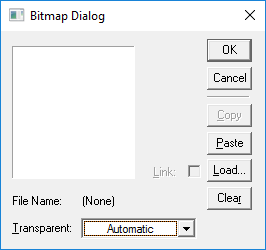
  3. On the Normal page, locate the Bitmap property and click its Browse button. The following dialog box appears:

Bitmap Dialog

  1. On the Bitmap Dialog dialog box that opens, click Load.
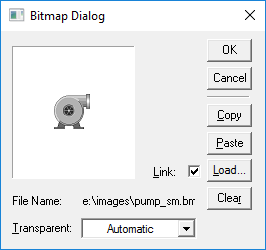
  2. Browse to the location of your desired image, select it, and click Open. A dialog box with a preview of the image and the image File Name appears:

Image preview

  1. If you want to copy the image to the clipboard and paste it to the screen, use the Copy and Paste buttons. They are only available if an image is loaded.
  2. If you want to select a different image, click Clear to clear the loaded image from the Bitmap Dialog dialog box.
  3. If you want part of the loaded image to be transparent, click Transparent, then use the drop-down menu to select which color you want to be transparent. The transparency mask has 0% tolerance, so only pixels that exactly match the selected color will be transparent. You must choose only a color from the set list; however, you might find that the BackColor property helps you create a "transparent" effect.
  4. Link is checked by default. This indicates that the source of the image file is linked to the CygNet Studio screen. You can uncheck this box to embed the image.
  5. Note: A linked image is accessed from the file system each time the screen is opened. To link, all users of the screen must have read access to the image's storage location. If the source is unavailable, a "Not Found" message appears in its place on the screen. Linking can reduce the size of the CygNet Studio file. The amount of reduction depends upon the number of images on TheView and the size of the images. With just a few images the difference might be slight, so you might want to do a comparison before selecting one method over the other. Embedding the image is the recommended method for most screens. When the image is embedded, it is saved with the screen. Embedding the image in the TheView makes the file self-contained.

  1. If you are finished configuring this image, click OK.
Back to top

Let us know how we can improve this topic.

CygNet at weatherford.com

© 2020 Weatherford. All rights reserved.